How To Reframe A Video For Different Social Platforms
By SPARK Editorial Team ·
How do you reframe one video for different social platforms?
Choose the destination format first, then adjust the crop around the person and the important action rather than forcing the same frame everywhere. Keep the original footage, inspect the entire clip for movement, check that captions and interface overlays remain clear, and preview the finished export on a phone before publishing.
A crop can make a video easier to watch on a phone, but a badly placed crop can remove the speaker, an important product or the action viewers need to understand. Treat every new aspect ratio as a separate edit to review, not a one-click promise that fits every source.
Choose The Destination Before Changing The Crop
Write down where the clip will be published and what the viewer should notice. Instagram's Reels guidance allows a range of aspect ratios up to 9:16. YouTube recommends keeping a video's native aspect ratio and avoiding baked-in letterbox or pillarbox bars. Check the current requirements for the exact placement before exporting.
Reposition The Frame Around The Story
- 1Keep the original source file unchanged so you can create another crop later.
- 2Set the output canvas to the destination format.
- 3Place the speaker or main subject inside the visible safe area.
- 4Check hand gestures, products, text and background details that explain the action.
- 5Scrub from beginning to end and reposition the crop if the subject moves.
Check Captions And Platform Controls
Captions, faces and interface buttons all compete for screen space. Keep essential visuals away from the edge and leave breathing room where the destination app may place controls. Read captions at actual phone size, and confirm they do not cover the speaker's mouth, important product details or a key part of the demonstration.
Preview Every Export Before Posting
Preview the full video, not only its opening frame. Look for accidental head or hand cutoffs, black bars, sudden jumps when the subject moves, stretched footage and captions that are too small. Compare the export with the source and keep a separate, clearly named file for each final crop.
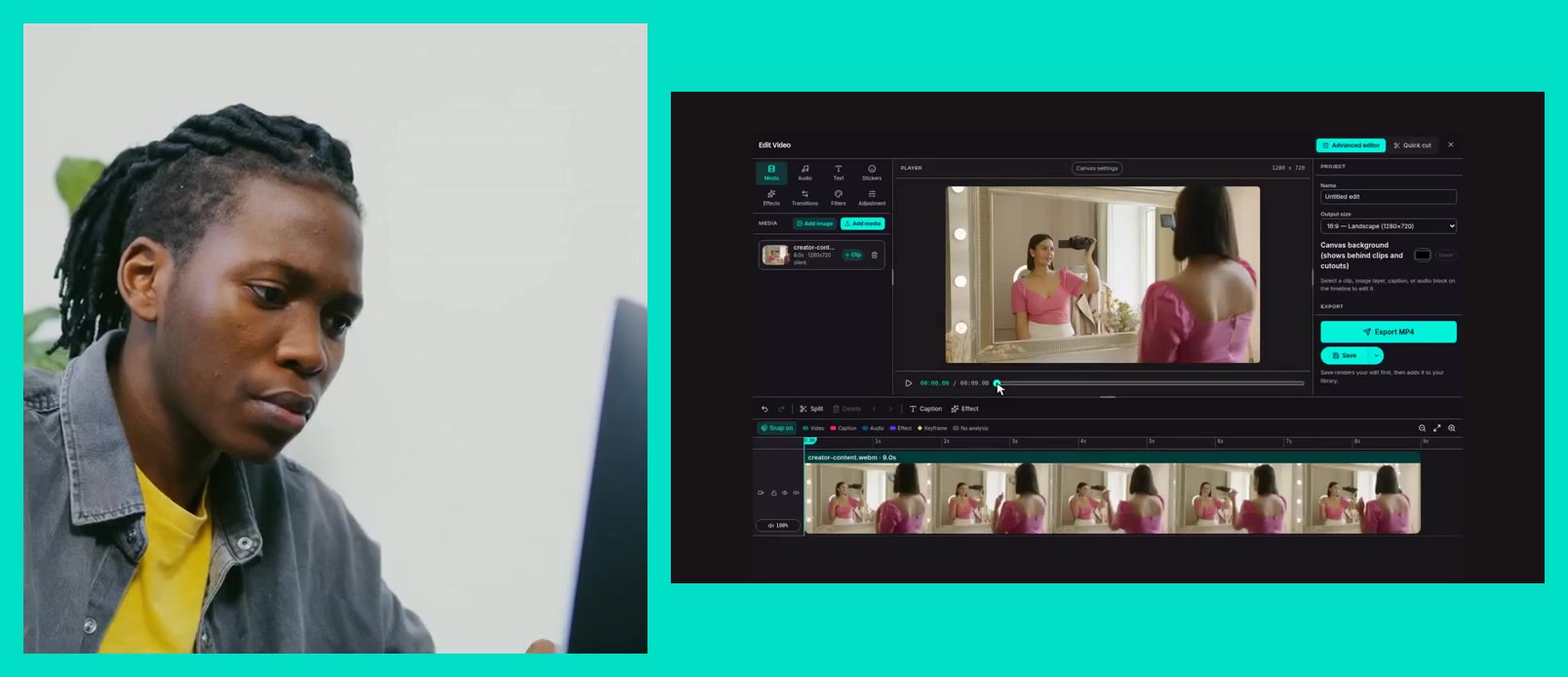
If an important subject cannot stay inside a single crop, make a second version or keep the original aspect ratio. A format preference is not worth losing the story.
Frequently asked questions
Should I crop every video to vertical?
No. Use the format that suits the destination and the story. Keep the source aspect ratio when cropping would remove important people, details or context.
How do I stop a person being cut off in a vertical video?
Position the crop around the subject, then review the entire clip because people and cameras move. Adjust or split the framing when a single crop cannot keep the important action visible.
Does one export work for every social platform?
Not always. Destinations may have different placement requirements and on-screen controls. Check current platform guidance and preview each version before posting.
Can SPARK help resize a video?
SPARK Editing includes video resizing and crop workflows. Review the finished framing yourself before publishing, especially when the subject moves.